

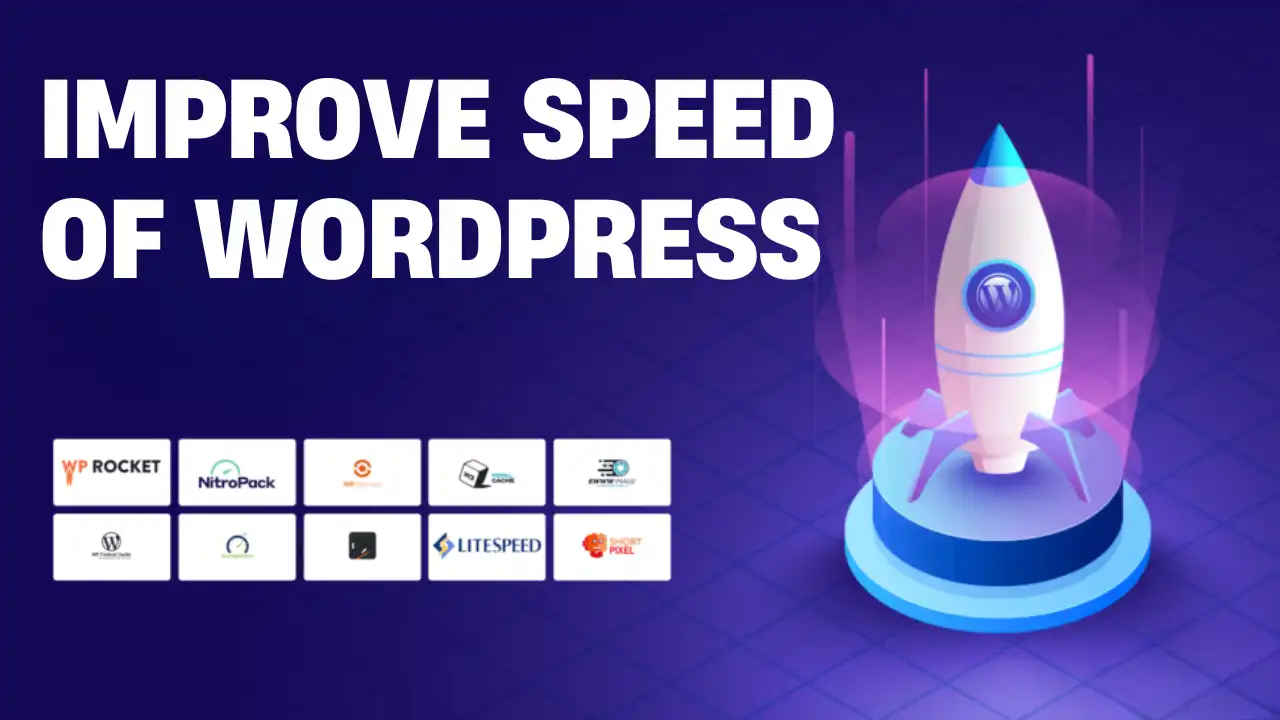
Website speed is no longer a performance “nice to have.” For WordPress sites, it directly affects search rankings, user retention, conversion rates, and even how often Google crawls and re-crawls your pages.
Yet most advice about WordPress speed follows a predictable and incomplete checklist:
- Install a cache plugin
- Compress images
- Enable lazy loading
While none of this is wrong, it often fails in practice because it ignores how WordPress performance actually works. Speed problems are rarely caused by a single issue, and blindly stacking plugins frequently creates conflicts, regressions, or unstable sites.
This guide explains how to enhance the speed of a WordPress website using plugins in a way that improves performance without introducing long-term technical debt. The focus is practical: which plugin categories matter, how specific plugins work, when they help, and when they stop being effective.
Understanding What “Speed” Means in WordPress
Before installing any plugin, it is important to understand what Google actually measures.
Speed is not a single metric. It is a combination of:
- Server response time (TTFB)
- Page rendering speed
- JavaScript execution delay
- Layout stability during load
- Resource loading order
Google evaluates these signals primarily through Core Web Vitals, but most WordPress performance problems originate before those metrics are measured — at the architecture and configuration level.
Plugins can improve speed, but only when they target the correct bottleneck.
Why WordPress Websites Become Slow in the First Place
WordPress itself is not inherently slow. Performance issues usually come from how it is extended and maintained over time.
The most common causes include:
- Heavy or poorly coded themes
- Too many overlapping plugins solving the same problem
- No effective caching layer
- Large, unoptimized images
- Excessive JavaScript and CSS assets
- Shared or underpowered hosting
Installing performance plugins without addressing these root causes often produces temporary gains followed by regressions, especially after updates or content growth.
The Role of Plugins in WordPress Speed Optimization
Plugins do not magically make a site fast. They act as performance layers that sit on top of WordPress and reduce unnecessary work.
Their role is to:
- Cache expensive operations
- Reduce database queries
- Optimize how assets are delivered
- Delay non-critical resources
When used correctly, plugins can dramatically improve speed without touching code. When used incorrectly, they compete with each other and slow the site down further.
Understanding what each plugin category actually does is the key difference between stable performance and ongoing problems.
Performance Plugins That Actually Improve WordPress Speed (And What Each One Solves)
Not all speed plugins address the same performance problems. Installing multiple tools without understanding their purpose often creates conflicts instead of improvements.
Below are widely used WordPress performance plugins, each solving a specific bottleneck. You do not need all of them — understanding what they optimize is more important than installing everything.
1) WP Rocket — Page Caching That Reduces Server Load
WP Rocket is primarily a page caching plugin designed to reduce how often WordPress has to generate pages dynamically. Once caching is enabled, most visitors receive pre-generated HTML instead of triggering PHP and database activity.
Beyond caching, WP Rocket also handles:
- Browser caching headers
- GZIP compression
- Basic CSS and JavaScript optimization
- Lazy loading for images and iframes
This makes it popular among non-technical users because meaningful speed improvements are possible without manual configuration.
Where it can cause problems:
On sites with aggressive hosting-level caching or heavy dynamic content, incorrect settings can lead to stale pages or broken functionality. WP Rocket works best when it is the only caching layer.
Best suited for:
Blogs, marketing websites, and content-heavy WordPress sites.
2) W3 Total Cache — Advanced Control for Complex Sites
W3 Total Cache takes a very different approach. Instead of simplicity, it offers granular control over nearly every caching layer in WordPress.
It allows configuration of:
- Page cache
- Object cache
- Database cache
- Browser cache
- CDN integration
This level of control is valuable on high-traffic or complex sites, but it comes with risk. Misconfigured caching layers can increase database load or introduce inconsistencies.
W3 Total Cache is not inherently faster than other plugins — it is more configurable, which is only an advantage if you understand what you are doing.
Best suited for:
Developers or advanced users managing large or high-traffic WordPress installations.
3) LiteSpeed Cache — Server-Level Performance Optimization
LiteSpeed Cache is unique because it integrates directly with the LiteSpeed web server. Unlike traditional plugins that work at the PHP level, LiteSpeed Cache can handle page caching closer to the server layer.
This allows faster cache delivery, reduced server load, and better handling of dynamic content such as logged-in users.
However, LiteSpeed Cache only reaches its full potential on LiteSpeed hosting. On other servers, its benefits are limited.
Best suited for:
Sites hosted on LiteSpeed servers looking for maximum performance efficiency.
4) Autoptimize — Fixing Render-Blocking CSS and JavaScript
Autoptimize focuses exclusively on frontend asset optimization.
It improves speed by:
- Minifying CSS, JavaScript, and HTML
- Combining files to reduce HTTP requests
- Deferring non-essential scripts
- Controlling how assets load during page rendering
This directly affects perceived speed and Core Web Vitals such as First Contentful Paint.
Autoptimize does not replace caching. It works best alongside a caching plugin, handling the frontend while caching handles the backend.
Common mistake:
Over-aggressive optimization can break layouts, especially with page builders or sliders.
Best suited for:
Sites struggling with render-blocking scripts and heavy frontend assets.
5) Smush — Image Optimization Without Visual Loss
Images are often the largest contributors to page size.
Smush optimizes images by:
- Compressing files without noticeable quality loss
- Detecting oversized images
- Enabling lazy loading
- Reducing bandwidth usage
Image optimization has a direct impact on mobile performance and Largest Contentful Paint (LCP), especially on content-heavy pages.
Smush does not replace good image practices, but it prevents common mistakes from accumulating over time.
Best suited for:
Blogs, portfolios, and media-heavy WordPress sites.
6) WP Optimize — Cleaning Hidden Performance Bloat
Over time, WordPress databases accumulate unnecessary data such as revisions, trashed posts, and expired transients.
WP Optimize removes this clutter, improving:
- Admin dashboard performance
- Database query efficiency
- Backup and migration speed
Database optimization rarely creates dramatic frontend speed gains, but it improves long-term stability and prevents backend slowdowns.
Best suited for:
Older sites or frequently updated WordPress installations.
Okay, so now we know which plugin to use. But what if we install multiple at once, its explain in below section:
Why Multiple Cache Plugins Hurt Performance
A common mistake is installing more than one caching plugin.
This causes:
- Cache overwrites
- Inconsistent headers
- Broken dynamic content
- Debugging nightmares
One caching layer is enough. More does not mean faster.
Choose a single, well-maintained solution and configure it properly.
Other WordPress Settings That Improve Website Speed (Beyond Plugins)
Asset Optimization: CSS and JavaScript Handling
Modern WordPress sites rely heavily on CSS and JavaScript. Poor handling of these files is a major cause of slow pages.
Speed plugins optimize assets by:
- Minifying CSS and JS
- Combining files to reduce requests
- Deferring non-critical scripts
- Loading JavaScript after page render
This improves perceived speed and reduces render-blocking behavior.
However, aggressive optimization can break layouts or functionality, especially on complex sites.
Rule of thumb:
Optimize incrementally, not all at once.
Image Optimization Plugins: Speed Without Quality Loss
Images often account for the majority of page weight.
Image optimization plugins help by:
- Compressing images without visible quality loss
- Converting images to modern formats like WebP
- Resizing oversized uploads
- Enabling lazy loading
This reduces bandwidth usage and improves load times on both mobile and desktop.
Important note:
Optimizing images after upload is not enough. Proper plugins also optimize images at upload time to prevent future issues.
Lazy Loading: Loading Only What Matters First
Lazy loading delays images, videos, and sometimes iframes until they are needed.
This improves:
- Initial load time
- Core Web Vitals (especially LCP)
- Mobile performance
Most modern WordPress versions support basic lazy loading, but plugins allow more granular control, especially for background images and embedded media.
Lazy loading is most effective on:
- Long blog posts
- Media-heavy landing pages
- Product galleries
Database Optimization Plugins: Cleaning Hidden Bloat
Over time, WordPress databases accumulate unnecessary data:
- Post revisions
- Trashed items
- Expired transients
- Orphaned metadata
Database optimization plugins remove this clutter, improving backend performance and reducing query overhead.
While database cleanup does not always produce visible frontend speed gains, it improves:
- Admin responsiveness
- Backup size
- Long-term stability
This is maintenance, not a one-time fix.
Content Delivery Networks (CDNs) via Plugins
CDNs distribute static files across global servers so users load content from the nearest location.
Plugins integrate WordPress with CDNs by:
- Rewriting asset URLs
- Managing cache headers
- Handling file synchronization
CDNs are especially valuable for:
- International audiences
- Media-heavy sites
- High-traffic blogs
They do not replace caching — they extend it geographically.
Why Hosting Quality Still Matters
No plugin can compensate for slow hosting.
If your server:
- Has high response times
- Is overloaded
- Uses outdated PHP versions
Speed plugins will deliver limited results.
Plugins optimize how WordPress behaves within the limits of the server. They cannot change those limits.
So, if you have a small static site a 1 Core CPU and 2GB Ram is enough, but if you have high traffic site with 100 active customers you need a private VPS with 4 Core CPU and 16 GB Ram.
For performance-focused sites, hosting and plugins must work together.
How to Measure Real Speed Improvements
Never rely on “it feels faster.”
Use:
- PageSpeed Insights
- Lighthouse
- Real-world testing tools
- Browser performance panels
Test:
- Before installing plugins
- After each major change
- On both mobile and desktop
This allows you to attribute improvements to specific actions, not guesswork.
Recommended Optimization Order (Important)
For best results, optimize in this order:
- Choose decent hosting
- Install one caching plugin
- Optimize images
- Handle CSS and JS carefully
- Enable lazy loading
- Clean database periodically
- Add CDN if needed
Skipping steps or changing the order often leads to unstable results.
Final Thoughts: Speed Is a System, Not a Plugin
Enhancing the speed of a WordPress website using plugins works best when plugins are treated as precision tools, not magic buttons.
The goal is not to install everything that promises speed, but to identify real bottlenecks, apply targeted optimizations, and maintain consistency over time.
Used correctly, WordPress performance plugins can deliver excellent results — without sacrificing stability, scalability, or future flexibility.